What SigmaShake does and why you need it
By the end of this page you'll know what SigmaShake governs, which piece you actually need (CLI, Desktop, or both), and which tutorial in this section to run first.
Hand this to your AI agent
Check whether SigmaShake is already set up for this project and tell me what to
do next. Use only read-only commands — do not run `ssg init`, `ssg auth login`,
`ssg mode`, or anything else that changes state.

1. Run `ssg --version`. If the command isn't found, tell me the CLI isn't
   installed yet and that I should read the "Let your AI agent install and set
   up SigmaShake" tutorial.
2. If it is installed, run `ssg probe onboard` and read the JSON it prints.
   - If `ok` is `false`, tell me in plain language what `nextStep` says.
   - If `ok` is `true`, also run `ssg status` and summarize: how many rules are
     loaded, whether the daemon and dashboard are running, and which account
     is linked.
3. Report back in three short lines: (a) is the CLI installed, (b) is it
   licensed and running, (c) which tutorial page should I open next.
What your agent will do
- Run two read-only commands (
ssg --version,ssg probe onboard) and summarize the result. Nothing is installed, configured, or changed. - Point you at the right next tutorial instead of you having to guess.
What you do yourself: read the rest of this page, then follow the agent's pointer. If you're not sure whether your team already has a SigmaShake account, ask before you personally subscribe — you likely only need to sign in, not pay again.
Step by step
1. What SigmaShake is
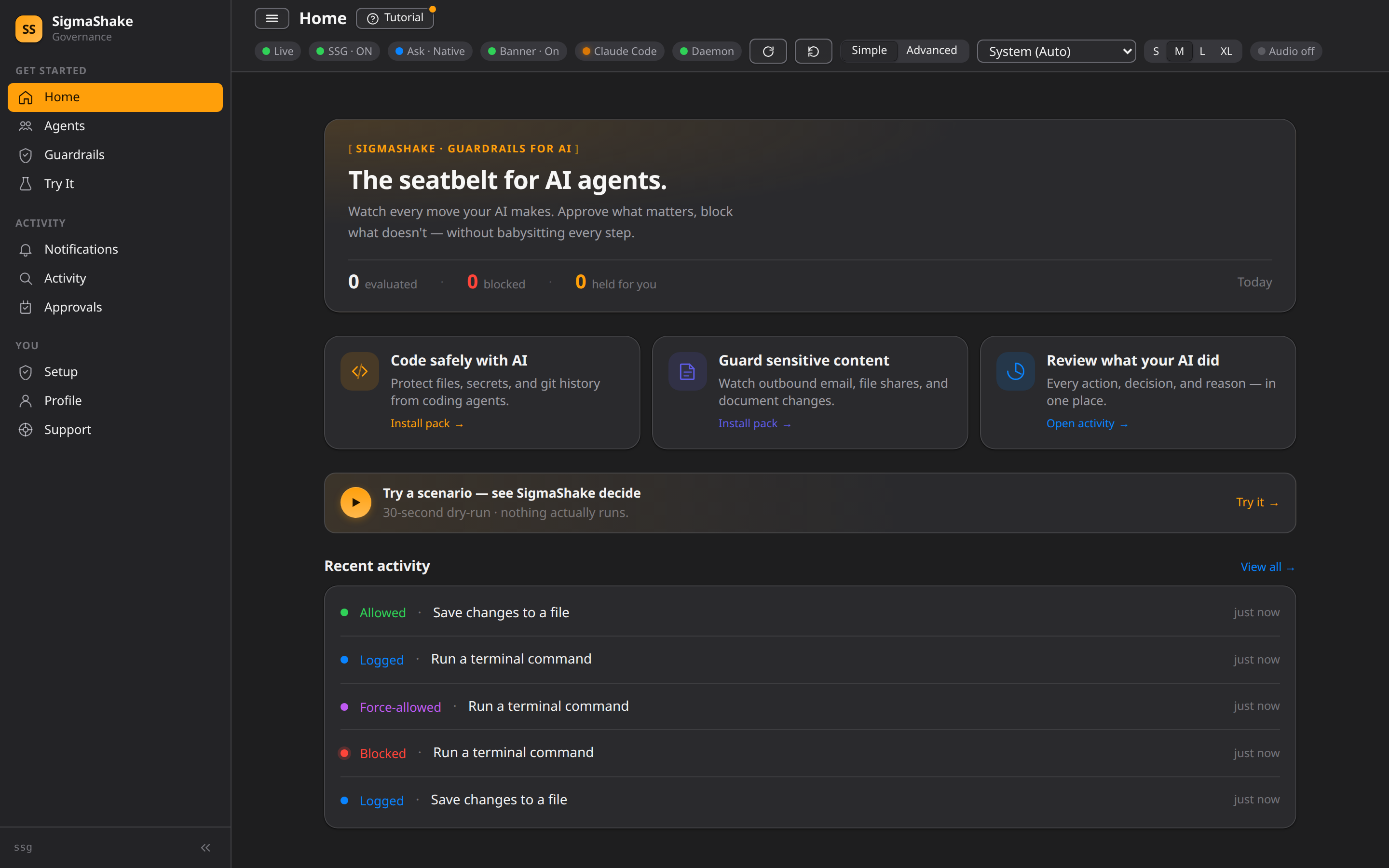
SigmaShake is a governance engine for AI coding agents. A local binary (ssg) and a background daemon sit between your AI agent — Claude Code, Cursor, Codex, Gemini CLI, Antigravity, Copilot, OpenCode, or anything else that speaks MCP or supports lifecycle hooks — and every tool call it's about to make. Each call is checked against your .rules files in under 2ms and gets one of: ALLOW, DENY, ASK (pause for your approval), FORCE (swap in a safer alternative), LOG, or SHADOW (allow silently, log for review).
You get a local dashboard (Insights, Rules, Audit log, Approvals, connected Agents, a governed Terminal, Sandbox controls, Network/Firewall posture) that shows what your agents are doing and lets you approve or deny in real time.
Read Why SigmaShake for the full case against linters, sandboxes, and system prompts as a substitute, or Introduction for the two-minute technical summary.
2. The two shapes it ships in
ssgCLI + daemon — every OS. Works with any MCP- or hook-compatible agent host. This is what most people install.- SigmaShake Desktop — a native app that supervises the daemon and hosts the same dashboard for people who'd rather not use a terminal: a menu-bar app on macOS (Swift/AppKit), a system-tray app on Windows (C#/.NET + WebView2), and a system-tray app on Linux (Go/Wails, WebKitGTK). All three run the same
ssgengine underneath and read the same.sigmashake/rules.
If you're a developer, start with the CLI — it's the fastest path and the one your AI agent can drive end-to-end. If you bought a plan and don't write code, Desktop is built for you.
3. Why this exists
AI agents run shell commands, edit files, make network calls, and spawn sub-agents — autonomously, at machine speed, from instructions that were never meant to be airtight specifications. Without something watching the tool-call boundary, an agent can:
- delete files recursively in the wrong directory,
- read and leak a secrets file or a private key,
- force-push over a shared branch, rewriting history,
- or publish an unreviewed release to a package registry.
One shared .rules file governs every agent on the machine, so you don't have to re-teach each new tool the same lessons.
4. What it costs
SigmaShake is free to download and install. A $5/month subscription unlocks every governed value surface — rule evaluation, the audit trail, the dashboard, and Fleet. There is no free tier or trial of that value: an unlicensed install runs the CLI, but every value surface is gated fail-closed until you activate a license. See Plans & Limits.
5. Pick your path
| If you want to… | Read this next |
|---|---|
| Have an AI agent install and configure everything for you | Let your AI agent install and set up SigmaShake |
| Sign in on a machine where the CLI is already installed | Sign in |
| Activate the $5/month subscription that unlocks enforcement | Subscribe and activate |
Let your agent safely author or edit .rules files itself | Let your agent write rules |
| Run a real shell from the dashboard with every command checked | Use the governed terminal |
| Turn on your AI agent's native sandboxing from one place | Configure the agent sandbox |
| Allow the network domains your agent legitimately needs | Allow the network domains your agent may reach |
| Check or manage your local firewall posture | Manage the host firewall |
| File a support ticket or find a blocked call's audit trail | Report a bug or get support |
Verify
You don't need to verify anything from this page directly — it's informational. If you want to check where you stand right now, run the two read-only commands from the prompt above yourself:
ssg --version
ssg probe onboard
If the first command isn't found, you have nothing installed yet. If the second prints "ok":true, you're already fully set up and licensed.
If something goes wrong
| Symptom | What it means | Next step |
|---|---|---|
ssg: command not found | Nothing is installed yet | Agent install tutorial |
ssg probe onboard prints "ok":false | Installed, but something (auth, daemon, dashboard, or license) isn't finished | Read the nextStep field in the JSON output, or follow the Agent install tutorial's failure playbook |
ssg status shows rules loaded but no account linked | Installed, not signed in | Sign in tutorial |
Signed in but auth.licensed is false | No active subscription on this machine | Subscribe tutorial |
Next
- Let your AI agent install and set up SigmaShake — the fastest path if nothing is installed yet.
- Why SigmaShake — the deeper case for runtime governance over linters and sandboxes.
- Getting Started — the original human-facing quickstart, if you'd rather not hand this off to an agent.